 Generic HPGL Cutter Generic HPGL Cutter
The Generic HPGL Cutter feature is an advanced component in SoftRIP's Contour Cutting option. This special driver allows operators to use HPGL language commands to control cutting plotters that are not already available on the Printer Model selection window. This feature is flexible enough drive virtually every HPGL-compatible plotter available, including many larger plotters from companies such as Zund or Wild.
Although the "Generic HPGL Cutter" feature requires technical knowledge of HPGL language in order to setup a new cutter driver, no special expertise is required to operate the cutter once the driver has been configured. In addition, the "Generic HPGL Cutter" includes a number of pre-defined generic drivers that may be used as "templates" when setting up cutter models (more below). When the CUTTING variable and code is enabled on the Special Registration menu, "Generic HPGL Cutter" will become available as a new selection in the "Printer Model" window on the Print/Configuration tab. Select it the same way you would select any other plotter or printer. Selecting the Properties button will launch the "Generic HPGL Cutter Properties" menu shown in Illustration G1. On this menu, you can:
Running a Job Using the "Generic HPGL Cutter" Feature
To launch the "Generic HPGL Cutter Properties" menu (Illustration G1), select "Generic HPGL Cutter" from the Print / Configuration tab, then press the Properties button.
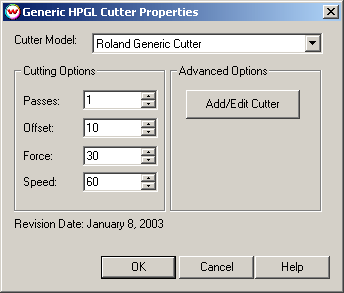
The window at the top of the menu allows you to select a cutter driver. The listings in this window may be of two types:
To process a job, select the appropriate cutter model from the drop-down box, and choose the desired cutting options:
Note: Options not available for specific cutting devices will be grayed out on the menu.
Once these options are set, click OK. The cutting job will be produced the same way it would be using a standard model driver.
WARNING: This section is intended for advanced users familiar with the HPGL programming language, and have access to the proper reference information provided by the manufacturer of the cutter. Failure to set operating parameters correctly may cause the cutter to display errors, and possibly damage the cutter.
Due to the large number of variables, Wasatch Customer Service will be unable to provide the proper settings for this process. Please consult your cutter manufacturer or dealer for assistance.
To setup a custom driver, click on the "Add/Edit Cutter" button on the "Generic HPGL Cutter Properties" menu ( Illustration G1). This will launch the "Cutter Command Setup" menu as shown in Illustration G2.
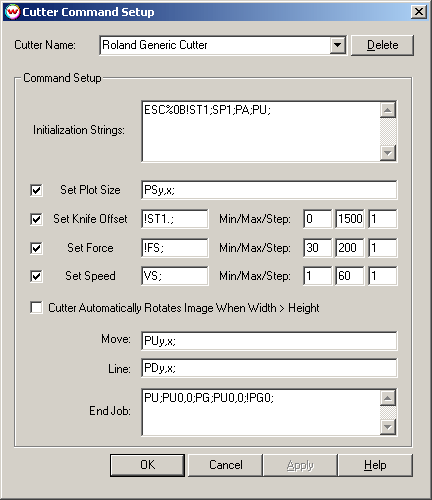
If you are editing an existing driver, select it from the "Cutter Name" window at the top of the menu. If you are adding a driver, select the most likely model from the drop down list and rename it as the new cutter model.
To enter a new name for a cutter, simply type the name into the "Cutter Name" window in the same way you rename a Color Configuration in the "Color/Basic" tab. Clicking "Delete" will delete the currently selected cutter.
The basic commands controlling the cutting process involve a relatively small subset of HPGL code. The controls in the "Cutter Command Setup" menu are provided because most cutters implement their own "flavor" of HPGL.
PJL commands can be entered in the "Initialization Strings" and "End Job" windows. Because the ESCAPE character is often used (and not easily input), type the letters ESC to have the ESCAPE character automatically inserted in its place.
The only vector commands supported by the software are Move (Pen Up) and Line (Pen Down). Arcs, Circles, and Bezier Curves are not supported, nor are they necessary.
The fields you can specify are as follows:
If there are options on your cutter you would like SoftRIP to support, please contact Wasatch SoftRIP customer service at 800-683-8214.