 Graphtec CE6000 Cutter
January 7, 2014
The Graphtec CE6000 is a cut only device and is only available if the special registration code, CUTTING, is enabled.
Initial Software and Cutter Setup
- SoftRIP Registration Mark Setup: Wasatch SoftRIP can print five types of marks for use with this cutter. These marks are selected from the Cutting Registration Marks button inside the 'Setup - Print Unit' window. Select the Graphtec Type 1, Graphtec Type 2 marks or the Graphtec 1/2 Inch Interval Cut Marks if you intend to use the RIP Detect registration method (see the "RIP Detect Registration" section below). After selecting either Graphtec Type 1 or Graphtec Type 2 marks, a separate window will open to allow you to choose the size of the cutting marks. Refer to the Graphtec Cutting Marks help for more information on this.
Select the 1/2 Inch Register or 1/4 Inch Register marks if you intend to align your job manually (see the Manual Registration section below).
- Connection: Choose the physical connection from the 'Print->Setup' window.
- USB: When you first plug the cutter into a USB port you will be prompted for a USB driver. Install the Graphtec driver provided with the cutter. Once complete, the Graphtec USB option will show up in the physical connection list on the print->setup screen in SoftRIP.
- COM: Choose the COM port to which the serial cable is connected.
- Driver Properties: There are three workflows detailed below that can be used with Wasatch SoftRIP and the Graphtec CE6000 cutter; Auto-detect registration, manual registration, and cut-only. Depending on which setup you choose will determine the final steps needed to setup the cutter and SoftRIP. See relevant section below to complete setup.
Workflows
-
Device-Specific Instructions for Print now, Cut Later (RIP Detect Registration / Automatic Registration)
Note: The print should have been printed with , Graphtec Type 1, Graphtec Type 2 or the Graphtec 1/2" Interval Register marks. These marks can be selected from the Cutting Mark menu on the Print/Setup screen prior to printing.
Loading the media:
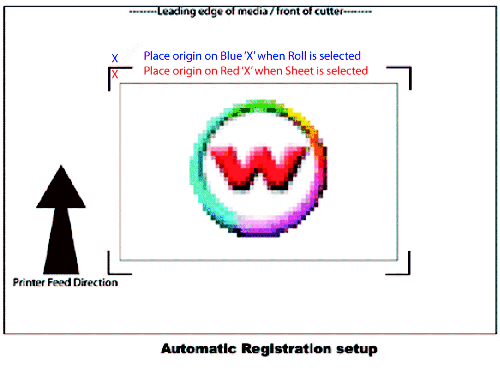
- Insert the media in the same direction as the media originally came out of the printer. The front edge of the media, as it came off the printer, should be fed into the rear side of the cutter. Since the cutter cannot cut any media beyond the pinch roller nearest the control panel or the pinch roller furthest from the control panel, align the media so that the pinch rollers are outside of the cutting area.
- After setting the pinch roller,
- Press Sheet or Roll to set paper type.
- Align the knife in the open area bounded by the first mark as shown in the illustration to the right. Press Origin. NOTE: If Type 2 marks are selected the origin is different for a Sheet paper type vs. Roll paper type as shown in the image to the right.
- In SoftRIP, go into properties (Print->Setup->Edit->Properties) and choose RIP Detect
- The cutter is now ready for the cut path to be sent from the queue. See the cutter's user manual for further assistance.
Important Note: If you need to cancel your job due to the cutter being unable to detect the registration marks, you MUST completely cancel the print spooler on the PC prior to canceling the job on the cutter's front panel. If you do not cancel in this order, the cutter may begin cutting in the incorrect location, damaging your print.
-
Device-Specific Instructions for Print now, Cut Later (Manual Registration)
Important Notes:
- This registration method may result in less accurate contour cuts than the RIP Detect registration method described above.
Cutting Marks: The print should have been printed with 1/4" or 1/2" Register (Not Graphtec) marks (1/2" are preferred). Select these marks from the Cutting Mark menu on the Print/Configuration screen.
Loading the media:
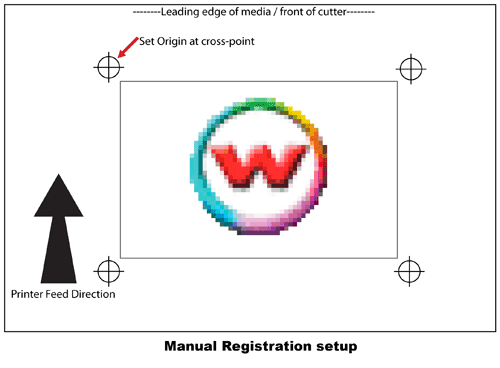
- Insert the media in the same direction as the media originally came out of the printer. The front edge of the media, as it came off the printer, should be fed into the rear side of the cutter.
Note: Since the cutter cannot cut any media beyond the pinch roller nearest the control panel or the pinch roller furthest from the control panel, align the media so that the pinch rollers are outside of the cutting area.
- After setting the pinch roller, press Sheet or Roll to set paper type.
- Align the knife with mark #1. (see illustration to the right) Press Origin.
- In SoftRIP, go into properties (Print->Setup->Edit->Properties) and choose Manual Detect
- The cutter is now ready for the cut path to be sent from the queue.
- When the path is sent, an information screen will ask you to align point #1
- Use arrow keys to make sure knife is centered on mark and press Enter
- Knife will move to next point. Repeat for all four points. Cutting will proceed once complete.
-
Device-Specific Instructions for Cut Only
Loading the media:
- Insert the media in the cutter and align the media so that the pinch rollers are outside of the cutting area.
- After setting the pinch roller, press Sheet or Roll to set paper type.
- Use arrow keys to place the knife over the desired starting point.
- Press Origin
- In SoftRIP, go into properties (Print->Setup->Edit->Properties) and choose Manual Detect
- The cutter is now ready for the cut path to be sent from the queue.
Interval Between Cut Marks
If you select Graphtec 1/2 Inch Interval Cut Marks from the Cutting Mark menu in Wasatch SoftRIP, registration marks will be printed at regular intervals
down the edges of any print layout. (This feature only works with layouts and with the print spooler, never with immediate print of a single page.)
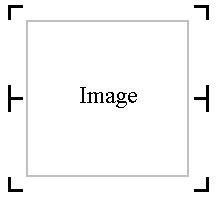
When you make this selection, you'll be presented with the following control.
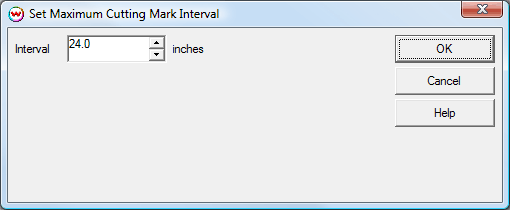
If the length of the print is close to or greater than the maximum cutting mark interval, subdivisions of cutting mark spacing start there. This means that the interval should never exceed that maximum, and may be half of the maximum, as would happen if you had a 24 inch interval, as shown above, and were printing 24.1 inches.
Graphtec CE6000 Front Panel Setup
After the cutter has been assembled and powered on, the following front panel settings need to be changed to the following values to operate your Graphtec CE6000 cutter with Wasatch SoftRIP (menu selections provided below each setting):
- Set Mark Type
- Menu
- 2 (ARMS)
- Up arrow
- 1 (Mark Type)
- Set Mark Size
- Menu
- 2 (ARMS)
- Up arrow
- 3 (Mark Size)
- Set Mark Scan Mode to ARMS
- Menu
- 2 (ARMS)
- 3 (Mark Scan Mode)
- 1 (to set Mark Scan Mode)
- Set Number Of Points (set to desired number)
- Menu
- 2 (ARMS)
- 3 (Mark Scan Mode)
- 2 (to set Number Of Points)
- Set Command to HP-GL
- Menu
- Up (for Interface)
- 1 (for Command)
- 2 (to set HP-GL)