 Epson SureColor G6000
July 25, 2025
Print Mode Options (Wasatch):
Pressing the Properties button next to the Printer Model
window on the Imaging Configurations screen will launch the control
panel for this printer.
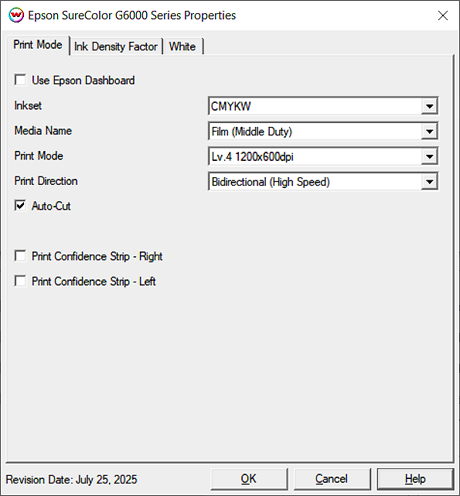
This page allows you to select from the following parameters:
- Inkset: Select the inkset to use, between CMYK and CMYKW.
- Media Name: Select the media name that matches your currently loaded media.
- Print Mode: Select the desired printing resolution. Higher levels increase print head pass count.
- Print Direction: Select preferred print direction, opting for higher speed or quality.
- Auto Cut: Select whether to cut the media afte a completed job, or leave on the platen for manual cutting.
- Print Confidence Strip - Right/Left: Enable thin vertical stripes of CMYK color down the side of the print.
Print Mode Options (Epson Dashboard):
If utilizing Epson Dashboard, different interface options are available, and those changes are reflected below.
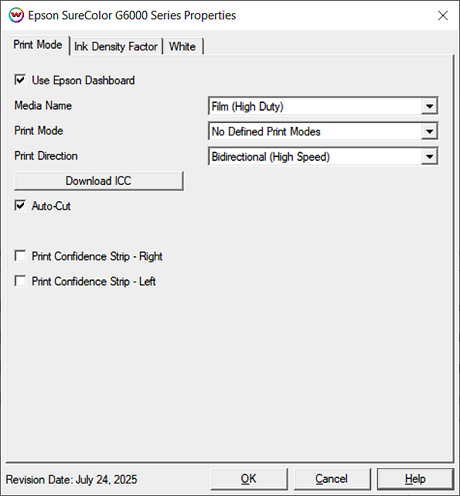
This page allows you to select from the following parameters:
- Media Name: Select the Media Name downloaded to the printer from Epson Dashboard.
- Print Mode: Select the desired printing resolution, relative to the selected Media Name. Higher levels increase print head pass count.
- Print Direction: Select preferred print direction, opting for higher speed or quality.
- Download ICC: Download the ICC file that corresponds with the selected Media Name.
- Auto Cut: Select whether to cut the media afte a completed job, or leave on the platen for manual cutting.
- Print Confidence Strip - Right/Left: Enable thin vertical stripes of CMYK color down the side of the print.
Ink Density Factor:
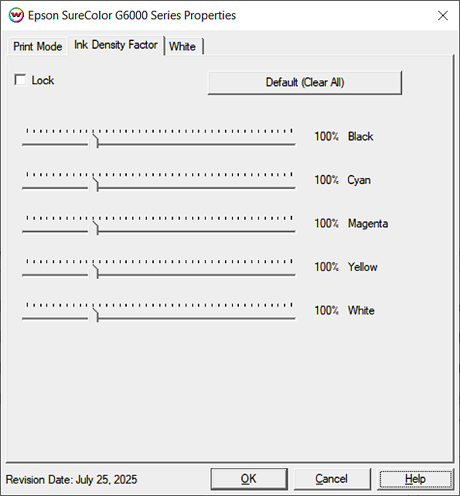
- Default (Clear All): Reset ink reduction slider to default position.
- Density Sliders: Increase or reduce the amount of ink being used for each ink channel.
Auto Generation
- Information about the Auto-Generation options can be found HERE