 Mimaki UCJV-300
November 17, 2025
Print Mode Options:
Pressing the Properties button next to the Printer Model
window on the Imaging Configurations screen will launch the control
panel for this printer.
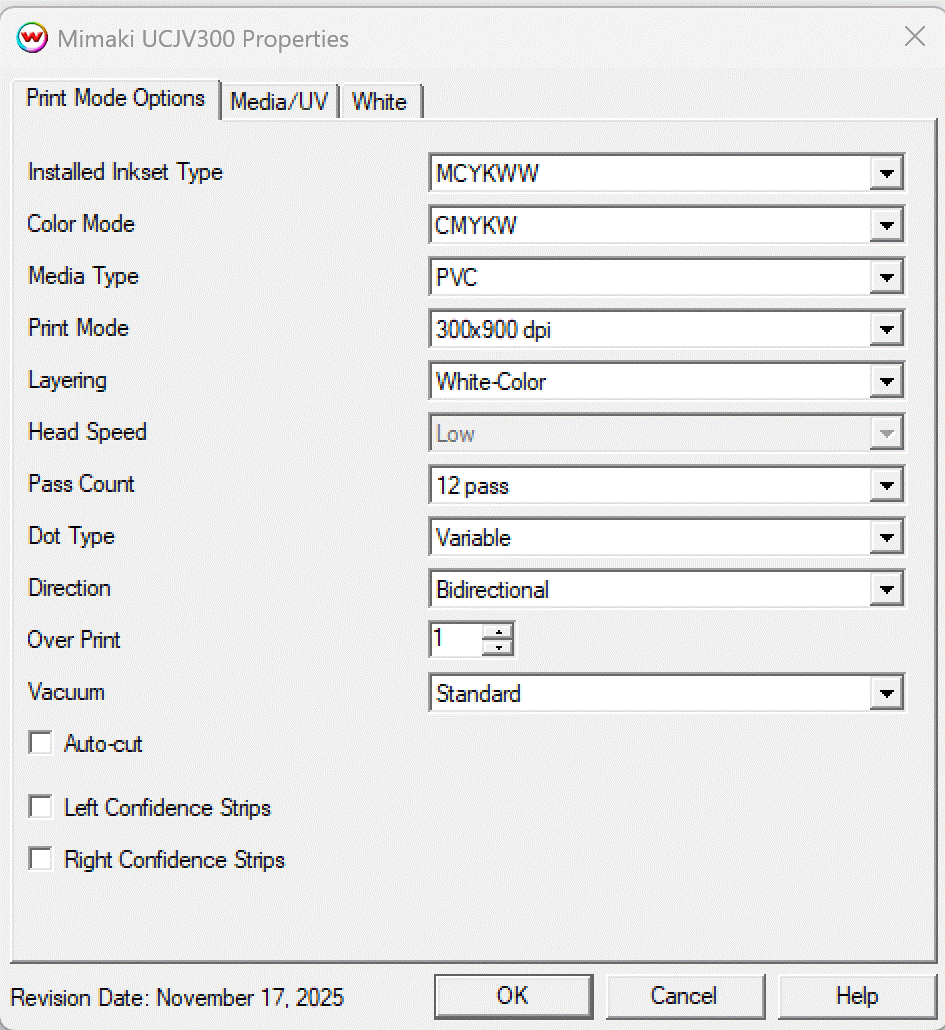
This page allows you to select from the following parameters:
- Installed Inkset Type: Set the Inkset that is in the printer.
- Color Mode: Select your prefered color mode from the available list for your installed inkset.
- Media Type: Select the media you are printing on.
- Print Mode: Select the print resolution.
- Layering: Shows the layering order for the White ink channel.
- Head Speed: Choose to have the head travel at a high speed or low speed. This option is not available in all pass counts.
- Pass Count: Allows you to specify the number of passes the head will make over a particular line. A higher pass count has a better quality but a slower print speed.
- Dot Type: Choose either a variable dot or fixed dot for printing.
- Direction: Select to print with either Unidirectional or Bidirectional.
- Over Print: Prints over the printed area the selected number of times. For example, if 2 is selected, the amount of ink laid down is doubled. The maximum value is 9.
- Vacuum: Set the strength of the media vacuum on the printer to Weak, Standard, or Strong.
- Auto-Cut: When selected, the media will be cut off after the print.
- Left / Right Confidence Strips: Choose whether to print color strips along the left or right edges of the output.
Media/UV:
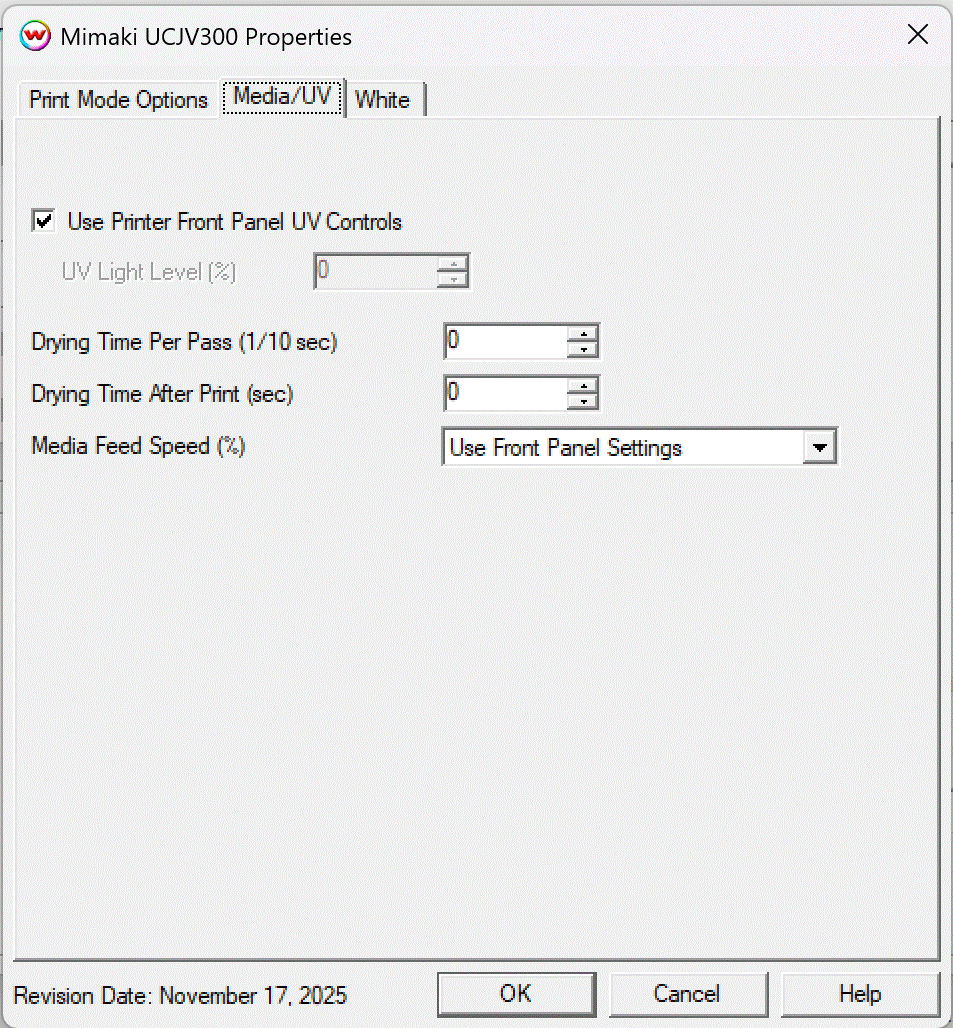
- Use Printer Front Panel UV Controls: If enabled the printer will use the settings from the front panel of the printer, otherwise the controls below can be used.
- UV Light Level %: Select the brightness of the UV light
- Drying Time Per Pass: Select the ammount of time the printer will wait between passes to allow for the print to dry.
- Drying Time After Print: Select the ammount of time the printer will continue drying after print is complete.
- Media Feed Speed: When selected, the front panel setting for the speed that the media is advanced will be ignored and the new value will be used.
Auto-Generation:
Auto-Generation controls are located on the third tab. View more information on Auto-Generation HERE.