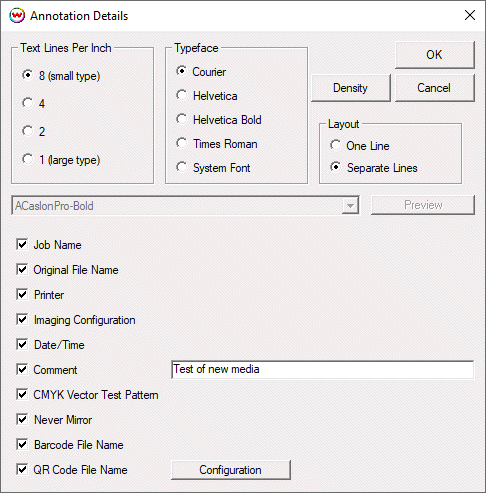
Annotate Prints will print extra information about your jobs at the foot of each job. Checking the Annotate Prints option will activate the Annotation Details button, which launches the following window.
For most high-resolution inkjet printers printing at 8 lines per inch (small type), will produce clear text and conserve paper. For lower resolution print modes fewer lines per inch with larger type, may be preferable. Up to six lines of information may be printed. Selecting One Line prints all information on a single line if possible.
Notes may be entered in the Comment window to be added to the annotations content; this text will be printed on all jobs printed from that unit. To enter a text comment to print on specific jobs only, enter a Job Comment message in the RIP Queue editing window.
Density: This control will allow you to adjust the ink density when printing annotations. Set the Density value from 10% to 100%.
CMYK Vector Test Pattern adds a pre-defined test pattern to the printed annotation data. This pattern will be printed with exactly the same CMYK vector color management as the main image. This is critical to quality assurance for color workflows that involve simulation.
Never Mirror: This control determines whether the annotation is mirrored on the transfer paper, or on the final product, when producing mirrored prints for dye sublimation.
Barcode File Name This causes barcodes to be printed based on the source file name. It is a simple way to set up barcode routing with hot folder workflows.
QR Code File Name: Select this control to print a QR Code with the source file name encoded in to the QR Code that is printed. The Configuration button will allow you to select the QR version and the Error Correction setting. See Illustration #1 below. These controls will determine how many characters can be encoded in the QR code.
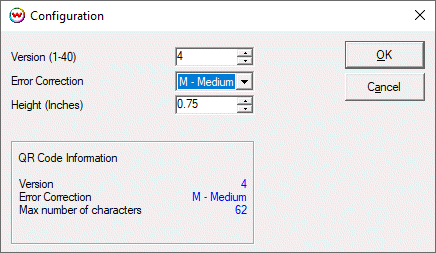
Illustration #1