The Trace feature generates vector cut paths based on analysis of the bitmap data for any job displayed as a preview. It is quick and interactive, and equally effective for both raster and vector graphics. It is a powerful alternative to our other cutting workflows that are based on creating cut paths in third party graphic design software.
When a trace has been generated, it is processed and output for cutting just like any vector cut path produced by other cutting workflows in Wasatch SoftRIP.
In addition to cutting, the Trace can be used to generate non-color separations such as white-ink, varnish, and metallics, when used with those drivers that support these features. When this mode of generation of the overlay is selected in the driver, the traced path is simply rendered as the overlay separation. The controls for chokes and spreads, and for rejection of interior paths, provide a powerful tool for generation of these separations directly within Wasatch SoftRIP.
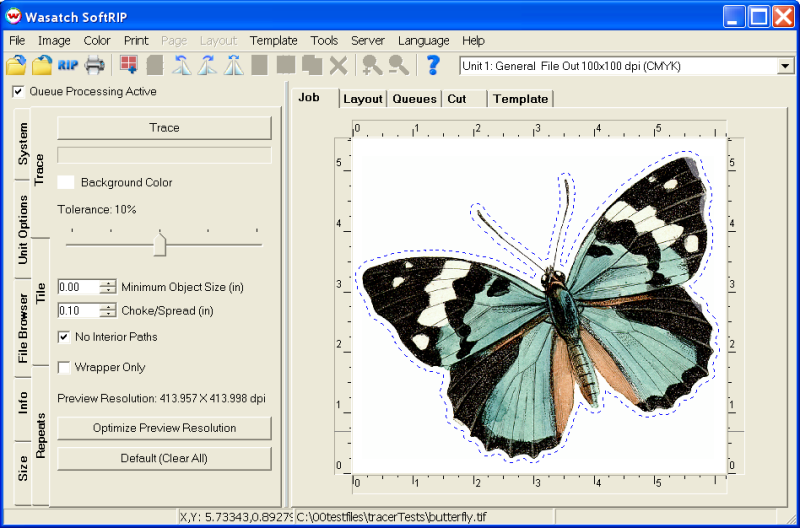
The Trace tab is displayed whenever a new file is opened on the Job tab. In the following illustration, the Trace button has already been pressed once, with a 0.1 inch spread, and No Interior Paths selected. The dashed blue line shows the trace that has been produced.
Settings can be adjusted and the trace recalculated repeatedly, until the desired effect is achieved. Calculation of the trace only takes a few seconds on typical jobs. Note that in this example, the Optimize Preview Resolution button is active. Whenever this button is active, press it and recalculate the trace to maximize the quality of the trace. In addition to the trace, a weeder box will be produced if you selected Outline Jobs in the Print Setup menu.
Background Color: The background color will be selected automatically, however, some images with multiple colors in the background may need to have the true background color selected. This can be changed by right-clicking on the desired background color in the preview image and selecting Background Color from the menu.
Tolerance: This sets the precision of specification of the background color, usually the purity of the color on which the trace is being made. Ten percent is a good default for many jobs.
Minimum Object Size: Closed paths that fit within a box of this size will not be traced. This is useful for rejecting junk in scanned images.
Choke/Spread: The Choke/Spread option determines how far the trace will be offset from the edge of your image. Choke contracts the trace while spread expands it. Negative numbers are chokes and positive numbers are spreads.
No Interior Paths: When this is selected, paths that lie inside of other closed paths will not be traced.
Wrapper Only: When this is selected, a simple outer wrapper of the trace is produced.
Optimize Preview Resolution: The preview files generated by Wasatch SoftRIP are a compromise to address many different user interface requirements. They may not always be ideal for tracing. When the preview is not ideal, this button will be active. Press it, and then re-trace the image to improve jagged traces when working with low resolution raster files or to boost precision when working with high resolution raster or vector files. When working with high resolution input, optimizing the preview resolution is best postponed until after all settings have been determined interactively, as tracing can take much longer with larger previews.
Default (Clear All): If you're getting odd or unpredictable traces, try pressing this button to return all controls to their most simple settings, and try tracing again.
When your trace is complete, simply RIP and Print your job and the traced vector cut path will be processed in the same way as other vector cut paths in Wasatch SoftRIP.