TCP/IP Printing (LPR/LPD) Services for Mac OS X 10.4
Mac OS X provides built in LPR support for native Mac OS X applications. This makes it very easy to setup and
transfer files to Wasatch ImageNET. ImageNet does not support applications running under the Mac OS 9 compatibility mode. For instructions on setting up an LPR client under Mac OS 9 click here.
Installing the PPD
As of the March 6th, 2003 revision of Wasatch SoftRIP, All Macintosh PPDs will work correctly under Mac OS X. If you have
a copy of March 6th or later, copy the files to the Macintosh hard drive.
- Copy the appropriate PPD file(s) for your printer from the SoftRIP Application CD-ROM to
Library\Printers\PPDS\Contents\Resources\english.lproj
These PPDs can be found on the SoftRIP Application CD-ROM in \PPDs\Mac. For example, if your printer is an Epson Stylus PRO 7600,
you should copy the "epsn7600.ppd" file to your Macintosh from the CD.
NOTE: Instead of the word "English" you may see "EN" or your native language i.e.
"DEUTSCH" or "DE"
NOTE: If you have trouble placing the PPDs into the folder, make sure you have proper permissions to do so
NOTE: Files must be copied before launching the Print Center, or they will not appear in the list.
Setup
Should you have any problems setting up LPR on the Macintosh, contact Wasatch Customer Service.
- Make sure your network services are running in SoftRIP by clicking on Server, then Wasatch ImageNET, and
Write down your IP address as it is shown on the window for later entry. The number will appear in ###.###.###.###
format
- Launch the Print Center which can be found in the Applications\Utilities directory

- Click on the Add Printer Button
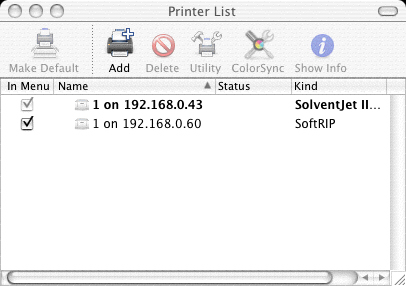
- Click on the icon that says IP Printer
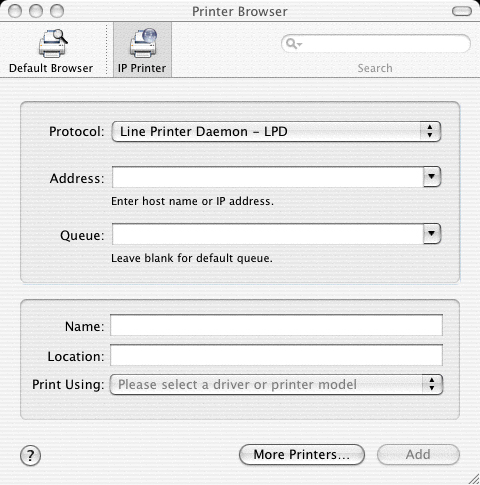
- Make sure that the protocol selected is Line Printer Daemon - LPD
- Enter the RIP station's IP address or domain name for Address this is the IP address that you wrote down in step 1. Do not include :80
- Queue name you may enter 1, 2,
3, or 4, depending on which Unit's hot folder you want the files to be sent to. Queue names should specify that queue locations consisting of a number ONLY will be placed in the root of the hot folder. For sub folders, the unit number must be followed by a valid path name (ex 1/client A)
To view your current
configuration for Hot Folders in SoftRIP, go to Server and click on Hot Folders.
Note: If left blank, all files will be placed into the C:\INCOMING folder.
- From the Printer Model drop down menu select "Wasatch" and then
the printer ppd that you installed above.
- Click on Add to add the printer to your list
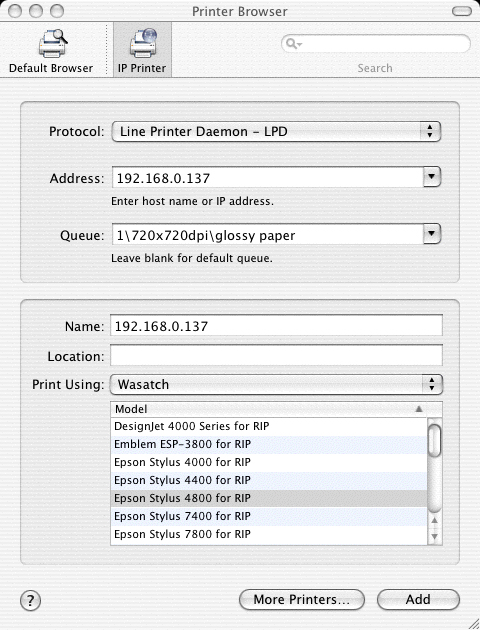
The LPR printer is now configured and may be used as any other MAC printer.