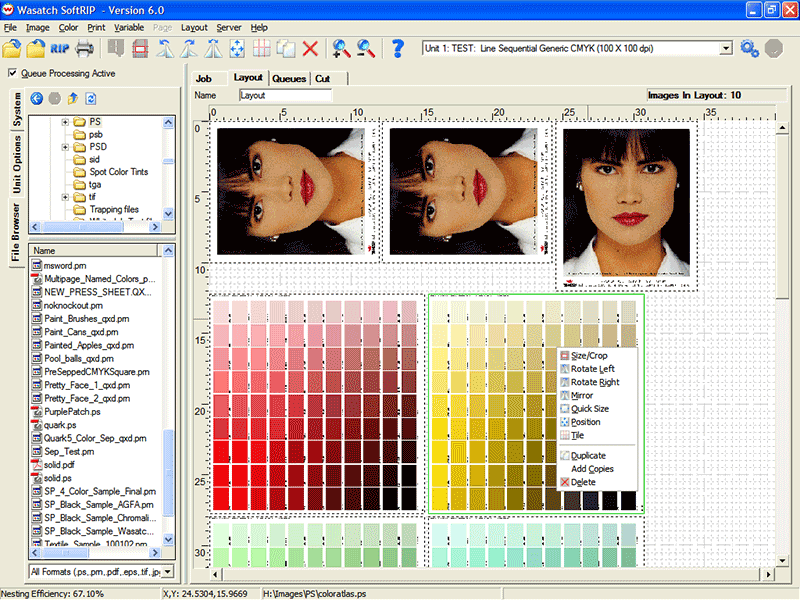
Illustration 1: SoftRIP Main Screen with Layout View
Below is a brief overview of Wasatch SoftRIP's main screen. The menus, tabs, and controls are covered in more detail throughout online help.
Illustration 1: SoftRIP Main Screen with Layout View
Use the File menu for opening files saved on disk or network. Files opened here are automatically displayed as screen previews when the Job tab is active, or imported to the current layout when the Layout tab is active. This menu also provides access to the Preferences window for changing optional settings.
The Image menu contains tools for modifying the image currently open in the Job tab, or currently selected in the Layout tab.
The Color menu contains key SoftRIP color tools for managing spot colors, color gamut, correction curves, and applying custom halftone screen effects.
Use the Print menu to access printer and Imaging Configuration set up, and launch RIP/Print processing.
When active, this setting enables switching among different pages of a multi-page PostScript file(s).
The ayout menu accesses automated Smart Nesting tools, and other features to speed the process of creating efficient layouts.
Use the Server menu to configure Hot Folders and various Wasatch ImageNET services.
When enabled during the SoftRIP installation, the Language menu selects among non-English languages.
Use the Help menu to access Online Help, program infomation, the Service Data Uploader utility, and online product registration.
Selects the printer to use for current job or layout processes. SoftRIP comes standard with support for two printers, but is expandable up to eight printers.
Under normal conditions, this box is checked. When unchecked it flashes red. All processing stops when Queue Processing Active is unchecked. Uncheck the box to stop all printing in order to change system configurations or re-prioritize jobs.
The icon buttons on the tool bar are active or grayed-out depending on various selections of the tabs found below them on the main window. All tool bar operations can also be accessed from menu selections within the program, and all are documented within help.
The tabs on the left and along the top edge of the main window include many of the key file preparation and workflow tools in SoftRIP. Based on your top tab selections, tabs along the left of the screen may appear, disappear, or modify.
When the Job tab is selected (Illustration 2) you can open an individual image file, or job, to be prepared for printing. With the Job tab selected, a full set of options for sizing, cropping, scaling, and tiling appear.
When the Layout tab is selected, as shown in Illustration 1, you use the full width of your media as a digital canvas on which you can prepare images to print as part of your complete production run. With this workflow, you can easily drag and drop images into the layout, manipulate them, and nest them to fit efficiently as part of your overall print run. The entire Layout can then be submitted to RIP and print.
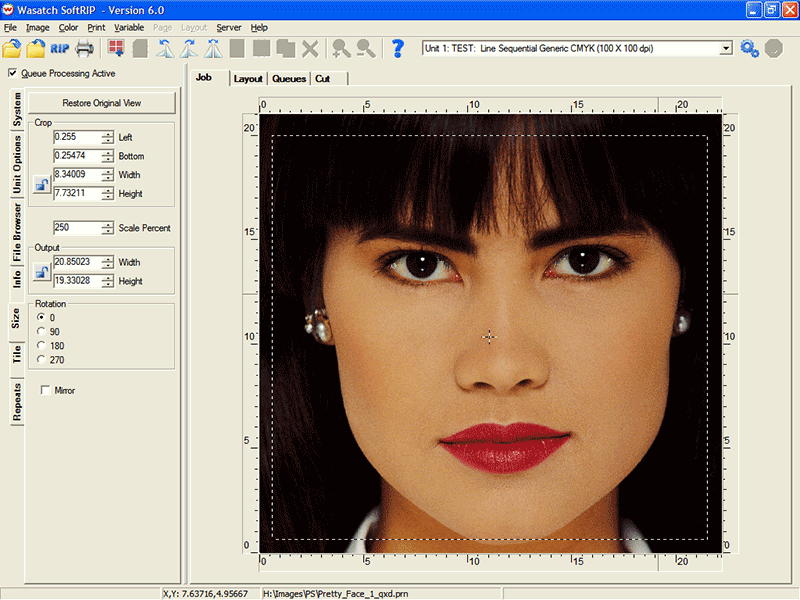
Illustration 2: SoftRIP Main Screen Job View
When the Queues tab is selected (Illustration 3) the view becomes the master production control station of the RIP. On the Queues tab, all RIP and Print queues are displayed with the status of each job updated in real time. The display of thumbnails and color display be changed in the Preferences tab.
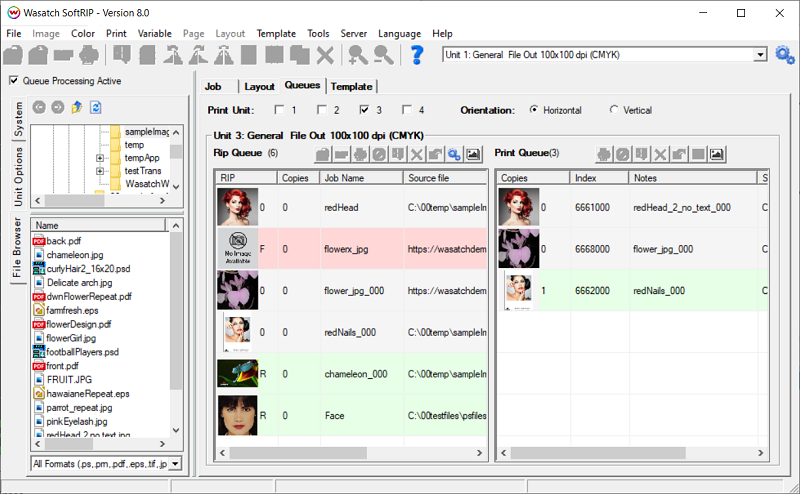
Illustration 3: SoftRIP Main Screen Queues View
Displays the configuration and status of all printers, and the queue status.
Includes workflow specific settings such as immediately print a Job, holding all Jobs until printed as a Layout, or printing a row at a time. Additional options for crop marks, registration marks, and annotations are localed here..
Lets you quickly drag and drop files into the Job, Layout, or Queues windows.
Displays information about an open job, including real-time values for input and output color from any point moused-over on the preview image. Available with images opened on the Job tab
Controls sizing, cropping, rotation, and mirroring for the current image on the Job tab.
Provides controls for paneling or tiling print jobs that are too wide for the current printer.
This tab appears if SoftRIP TX (Textile) has been purchased, and allows for the interactive control of seamless repeats for textile printing. It is discussed at more length in the Textile area of online help.